Staff request for a Laptop
Introduction
HRMS is an indigenous application that assists organizations in collecting and maintaining human resource data. We have a facility in HRMS where a staff can request for a laptop purchase. Staff can either go for Employee purchase or University purchase. This document explains the different processes of laptop purchase request.
Getting Started:
Access the Human Resource Management System.
- Open an internet browser. (Google Chrome is recommended).
- Type https://my.amrita.edu/ and hit enter.
- Log in with your amrita email address and password.
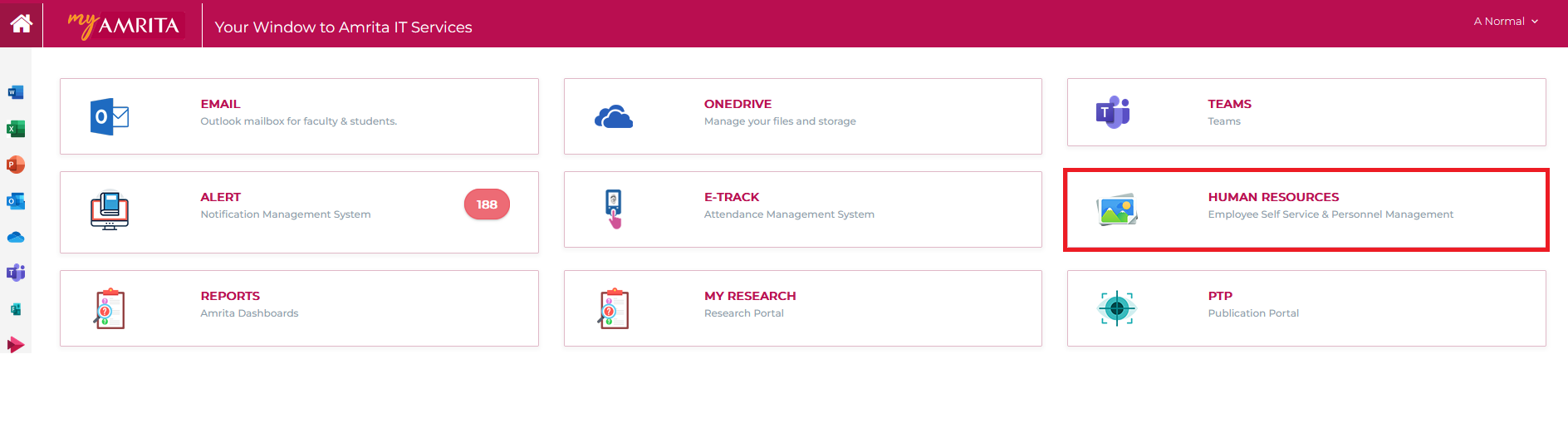
- Click on HUMAN RESOURCES.
Laptop Request:
- To access the Request form page, click on the Emp Laptop request in the left side menu.
- Click on the Purchase Request from the sub menu.
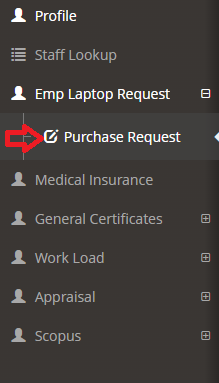
- Staff can submit either an Purchase Request / University Purchase Request.
Employee Purchase Request
- If the request is for an employee purchase, select Employee Purchase from the form and click the Submit button.

- Select the yes/no radio button for the question: Is Desktop already assigned to you? and click the submit button.

- Staff can monitor the status of laptop requests.
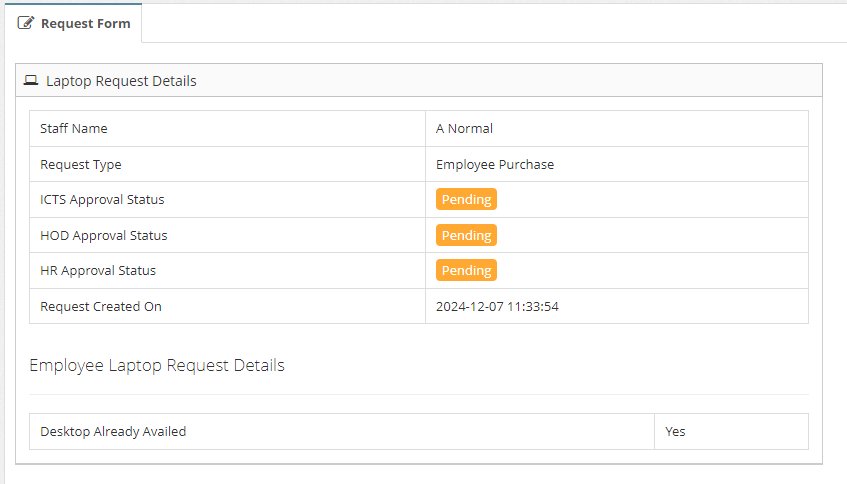
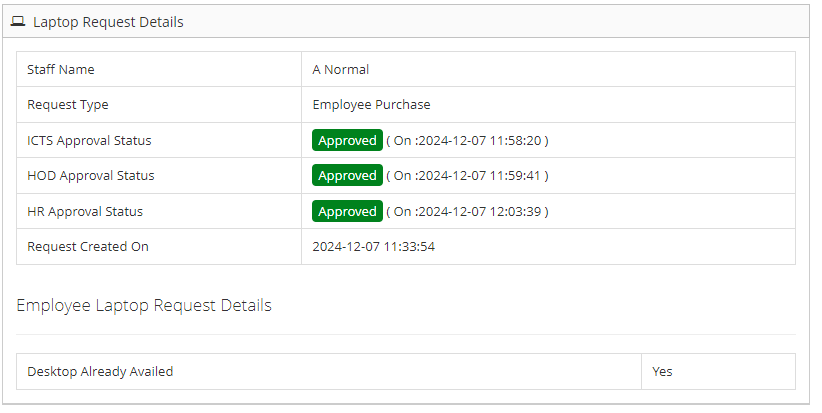
- The request should be verified and approved by ICTS staff, the HOD, and HR.
- Once the request has been approved by all the appropriate people, the staff can purchase the laptop and submit a reimbursement request with a maximum approval amount of ₹70,000.
Reimbursement Request:
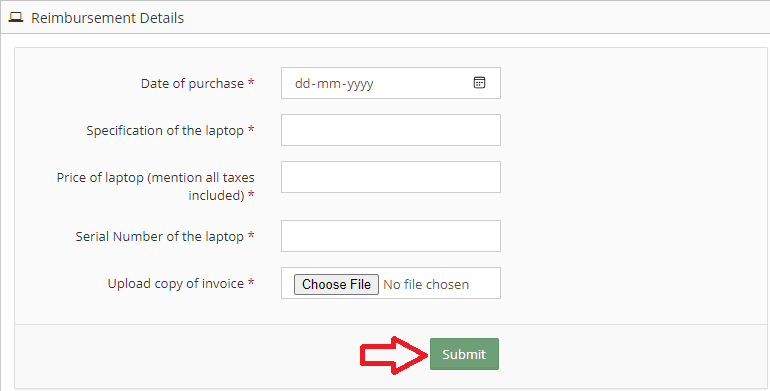
- Once the laptop request has been approved, the staff can request reimbursement in an amount less than ₹70,000. The staff must enter a few details, including the purchase invoice, and then click the submit button.
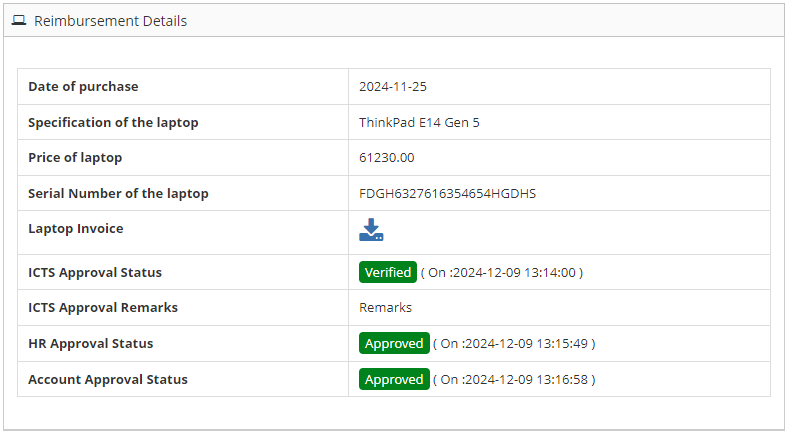
Staff can track the status of reimbursement requests.
The ICTS, HR, and Accountant staffs should verify and approve reimbursement requests.
University Purchase Request
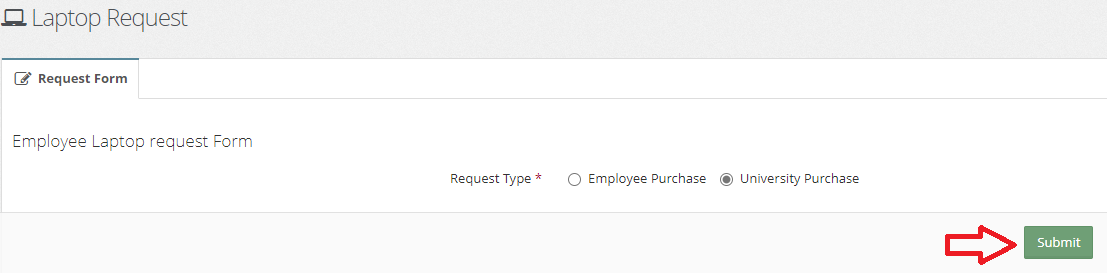
- If this is a University Purchase Request, select University Purchase from the request form and click the Submit button.
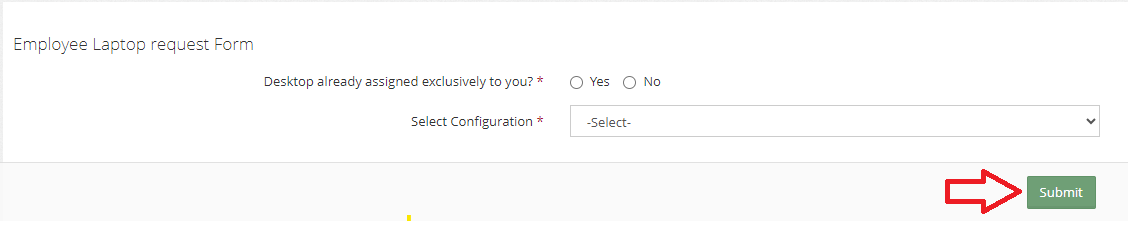
- Choose the yes/no radio button for the question: Is Desktop already assigned to you?, select the laptop configuration from the dropdown and click the submit button.
- Staff can monitor the status of laptop requests.
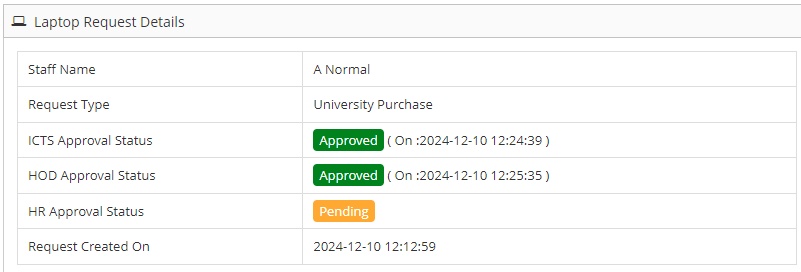
The request should be reviewed and approved by ICTS staff, the HOD, and HR.
Once the request has been approved by all necessary parties, the ICTS staff will initiate the reimbursement request process.
Staff can monitor the status of reimbursement process.
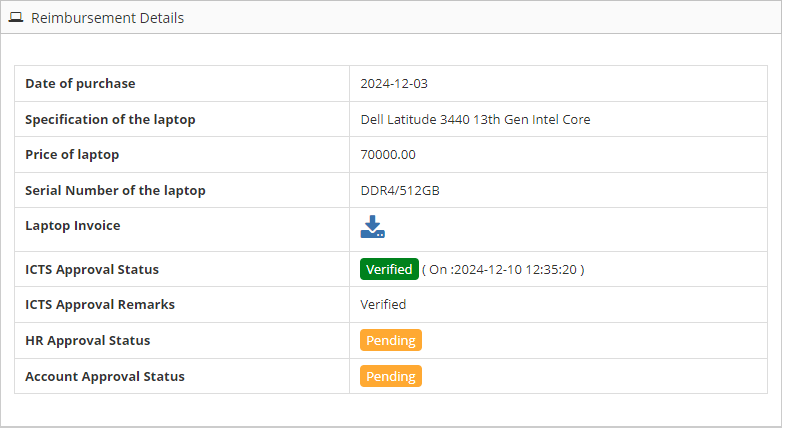
- The ICTS, HR, and Accountant teams should review and approve reimbursement requests.
- Once the accountant has added the approval amount, the staff can choose whether it is a one-time payment or an EMI.
- Staff can select either a one-time payment or an EMI payment and then click the submit button.

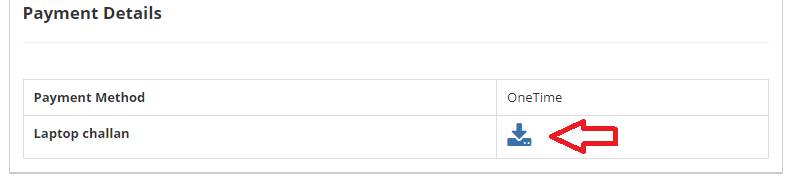
Payment Type : OneTime
- If the payment method is one-time, ICTS can upload the Challan, which staff can download and view.
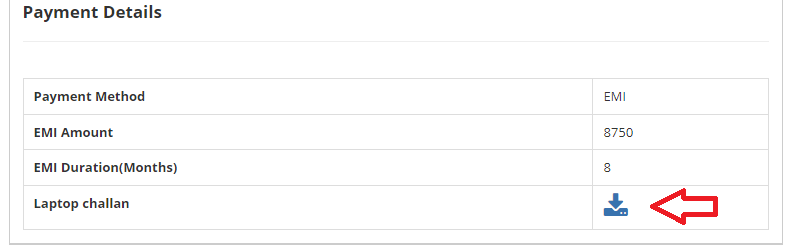
Payment Type : EMI
If the payment method is EMI, the accountant will specify the EMI Duration (Months) and EMI Amount.
Once the accountant has set all of the values, the ICTS staff will upload the challan, which the staff can download and view.
Rejected Request:
- If the request is rejected for any reason, the staff will be notified via email.
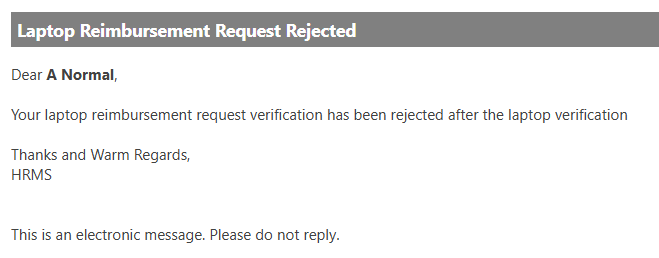
- Once the request is rejected, the user can initiate a new request through the portal.